
Notification management
To help streamline your workflow and filter out any unnecessary noise, the NetSPI Platform allows you to customize your notifications. When a new user account is created, all notifications are enabled by default.
To configure the notifications the NetSPI Platform can send you:
-
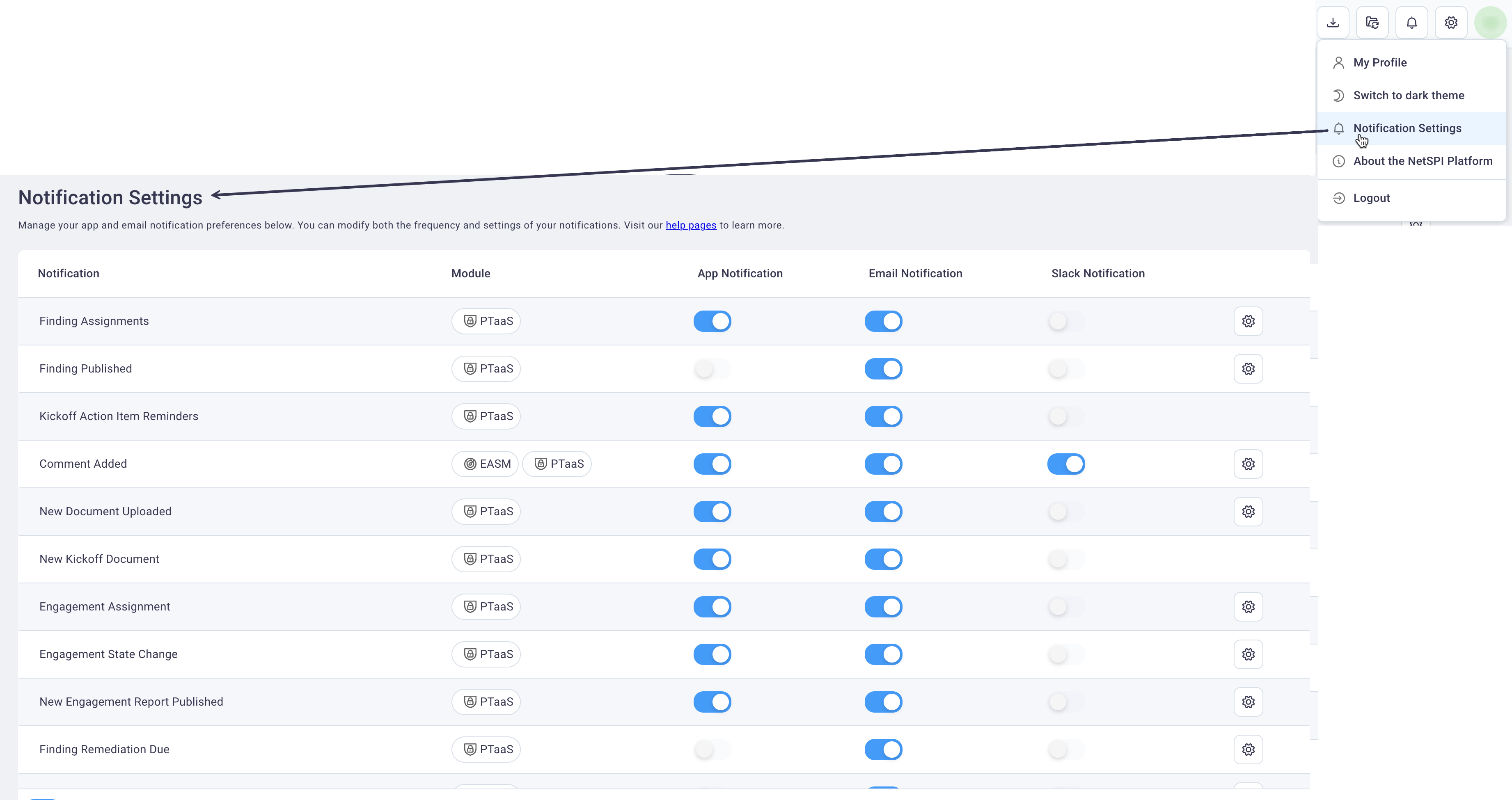
Select your name in upper right of the NetSPI Platform page and then select Notification Settings to display the Notification Settings page.
-
Move the slider for each NetSPI Platform notification type to receive notifications (blue) or not (gray). You can choose to receive notification in the NetSPI Platform only and/or to receive notifications to your email associated with your NetSPI account.
Email frequency settings
For all notification items, you can configure how often you receive email notifications.
-
Select the gear icon (if available) at the end of the Notification to display the Notification Configuration dialog box.
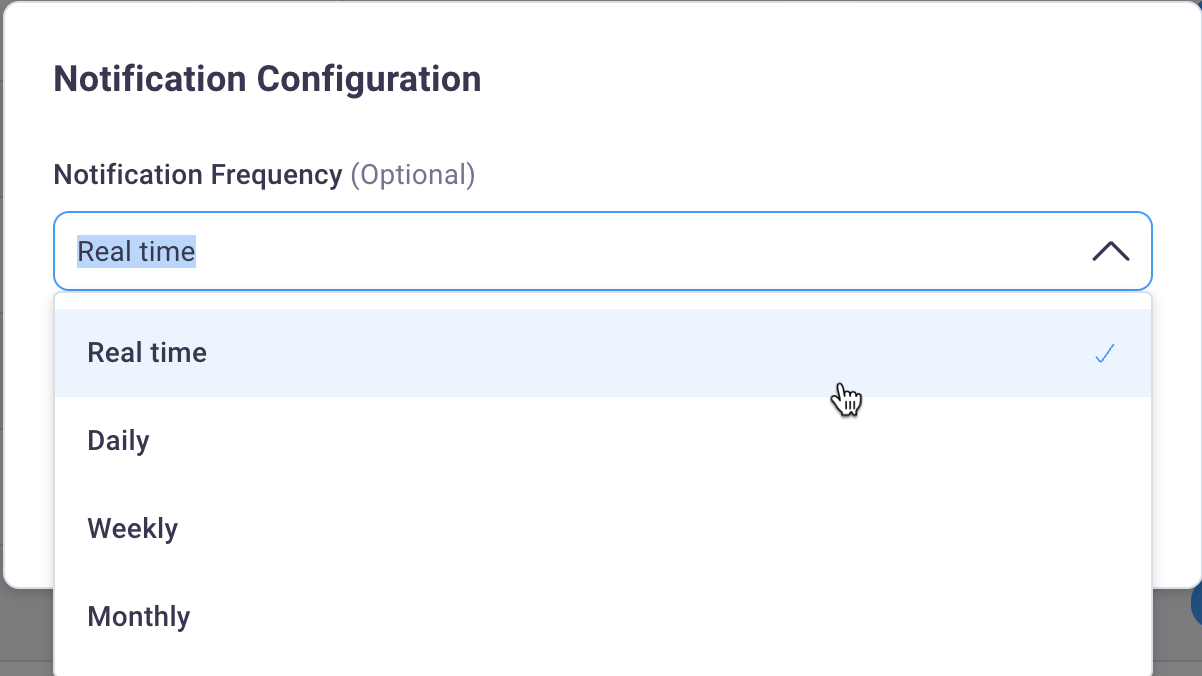
Options that display for email frequency will vary by notification type.
-
Select the frequency from the Notification Frequency drop-down list.
-
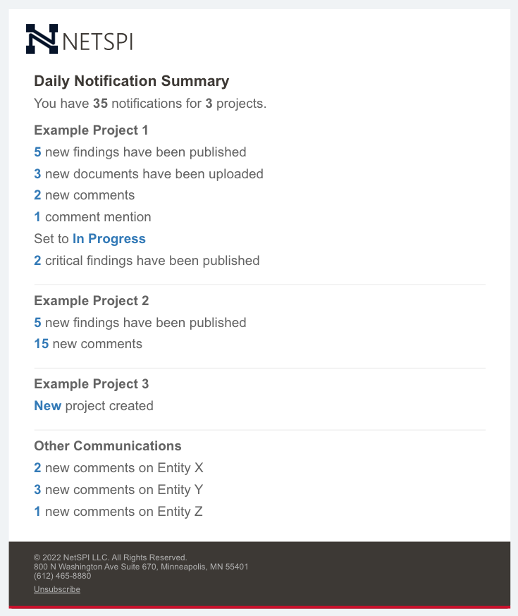
Use the table below as a guide for how often you want to receive notifications.
Sample notification:
Using comment mentions
If you want to reach a specific person at your organization or at NetSPI, use the NetSPI Platform’s comment mentions.
Add Comments dialog boxes are available throughout the NetSPI Platform. Selecting the + icon displays the Add Comments dialog box where you can enter comments or notes related to the section of the Platform where you select it.
-
Enter "@" and the first few letters of the person’s name you would like to tag in your comment. Their name should appear in the auto-selection drop-down list where you can select it.
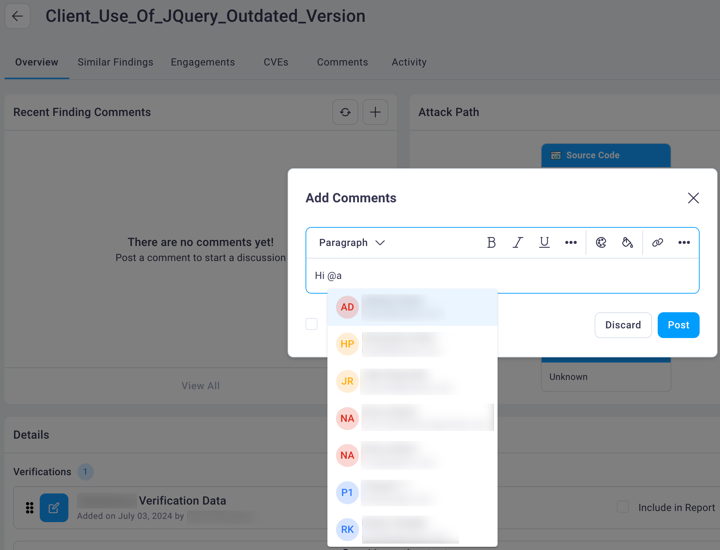
-
Enter any further comment information you’d like to share and select the Post button to save the comment. The person you included in the comment will receive a notification as long as they configured their Notification Settings to notify them when a comment is added.
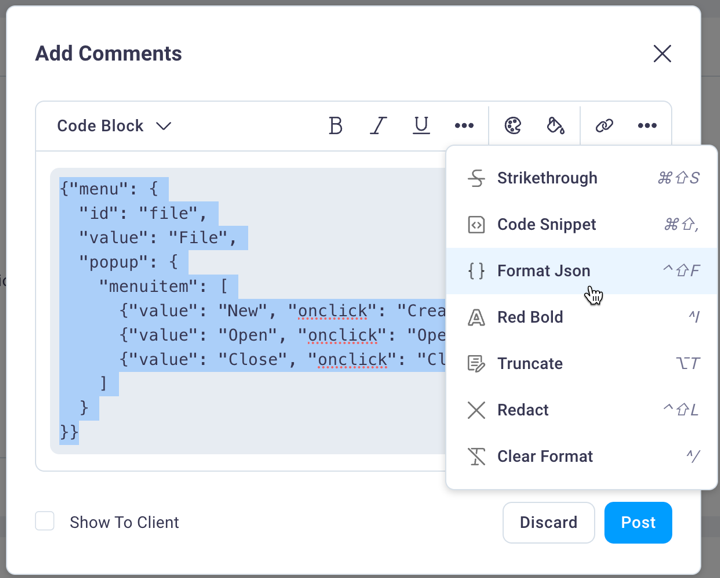
You can apply formatting to your comments in any Add Comments dialog box. Select the meatballs menu to display further formatting options and their keyboard shortcuts.