
Add an Asset
On the All Assets page, you can add IP address and domain assets. You can also add individual IP addresses or domains from their respective pages.
To add an asset, you must be a Client Admin with a continuous capability only.
Add an asset
To add an asset, on the All Assets page, click Add Asset. This will open the Add IPs and Domains side panel.
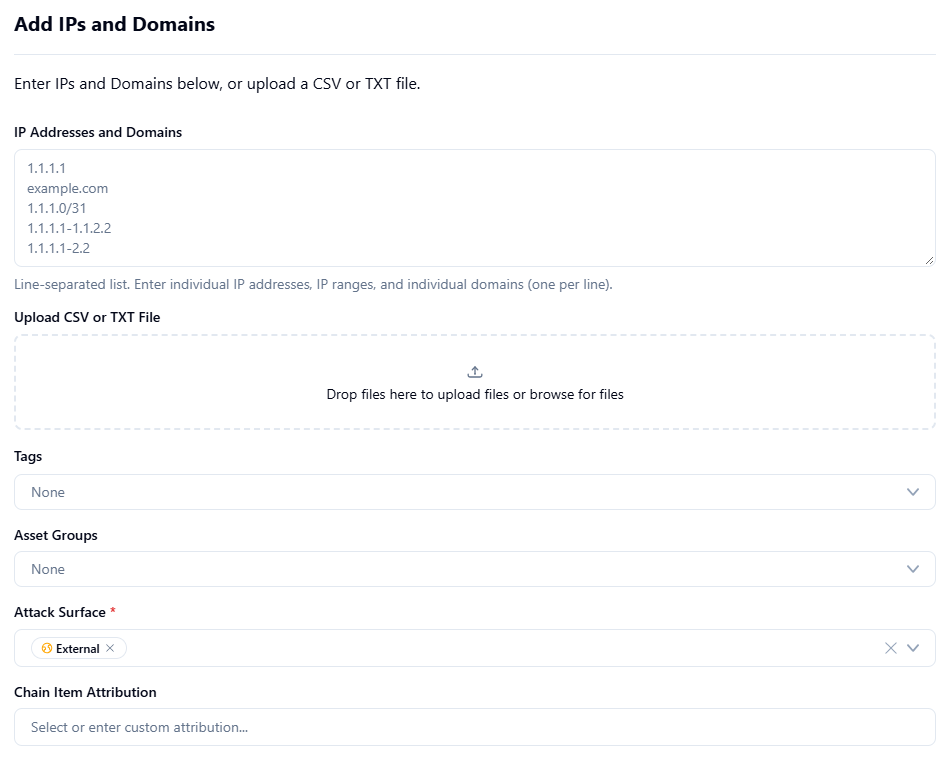
- Enter individual IP addresses, IP ranges, CIDR, and individual domains (one per line), or upload a CSV or TXT file.
- Select any Tags.
- Select any Asset Groups.
- Select the Attack Surface.
- Select or enter a Chain Item Attribution.
- Click Add Assets.
Delete an Asset
To delete an asset, you must be a Client Admin user.
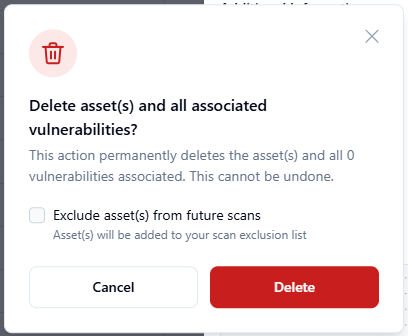
You cannot undo an asset deletion; it is a permanent action.
When you open an individual asset's page, the delete icon is in the top right. Click the icon to open a delete confirmation dialog box.
Confirm the deletion and any impacted vulnerabilities, choose whether to add the asset to the exclusion list for future scans, and then click Delete.
Bulk Actions
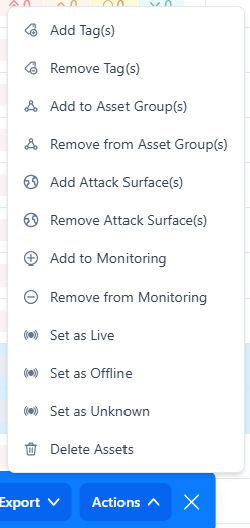
From any of the asset tables, you can perform bulk actions. Simply select the asset rows, and from the floating actions bar click Actions and choose the action to perform.
The available actions you can take will depend on your assigned permissions.