

Everyday Use
Welcome to the NetSPI Platform
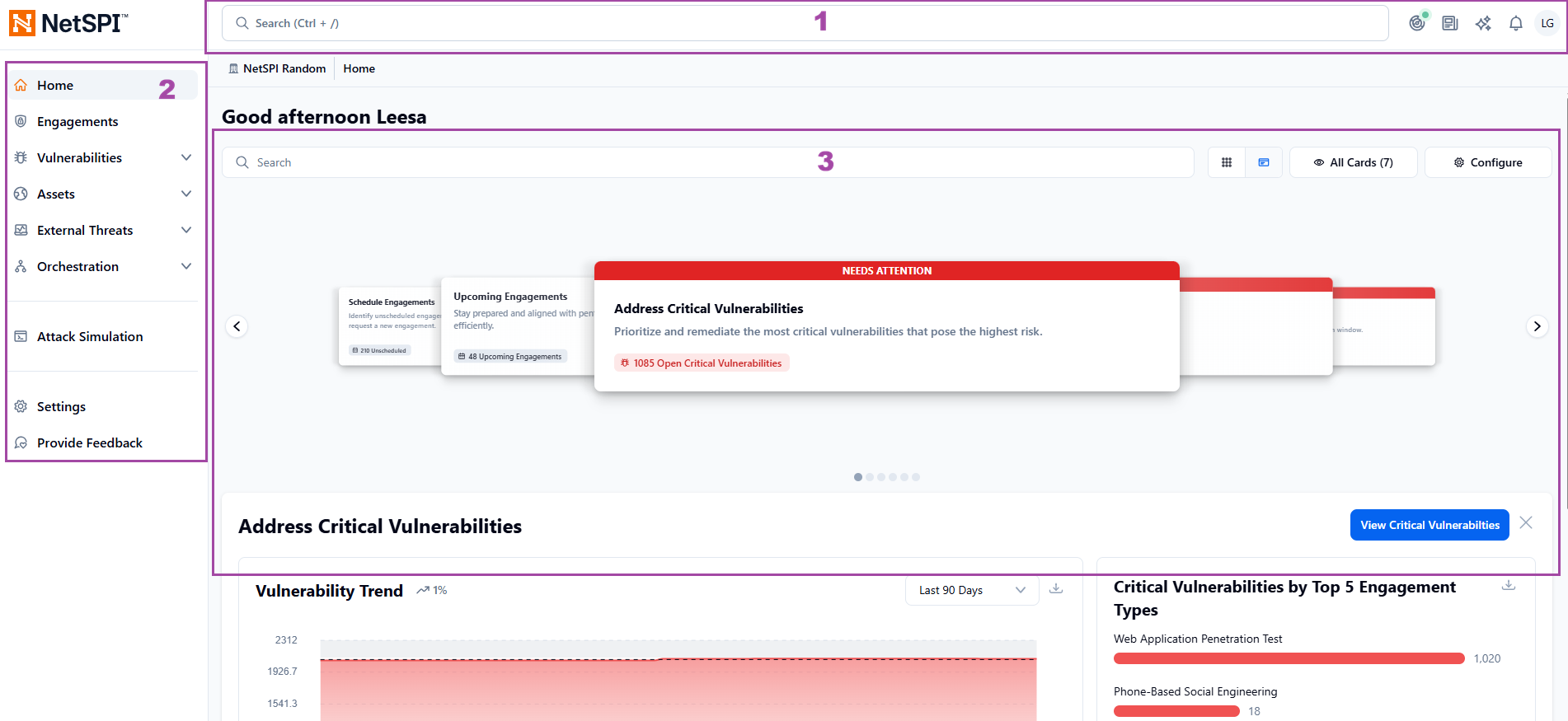
The NetSPI Platform's landing page invites you to launch into the sections and dig into the engagements, vulnerabilities, assets, and data views that help you manage your organization's security.
The NetSPI Platform is divided into three areas:
-
The top menu includes global search, activity, news and updates, the NetSPI chatbot, notifications, and profile settings and configurations.
-
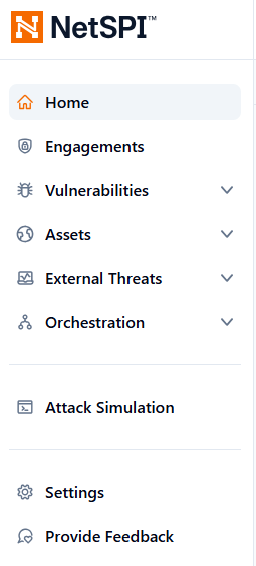
The left menu is where you select pages and subpages to explore.
-
The workspace area contains the most critical, actionable information, based on your selection from the top or left menu so you can complete common use cases in two clicks or less.
Top menu

-
Global Search lets you find assets and vulnerabilities across the platform.
-
The Activity indicator. Click it to check the health of your integrations, scanners, and agents and confirm everything is running as expected.
-
The News icon keeps you current on the latest NetSPI updates (blogs, podcasts, and release notes) all in one place.
-
The NetSPI Chat Bot, where you can ask questions about the platform anytime. Responses are pulled from the reference documentation and can provide a quick answer.
-
The Notifications icon gives you a preview of platform alerts, with a quick link to open the full list when you're ready to review.
-
The Profile icon lets you personalize your experience: switch between light and dark mode, view your profile, set your default experience, and log out.
Global Search
To open the Global Search, click on the search bar and begin typing.
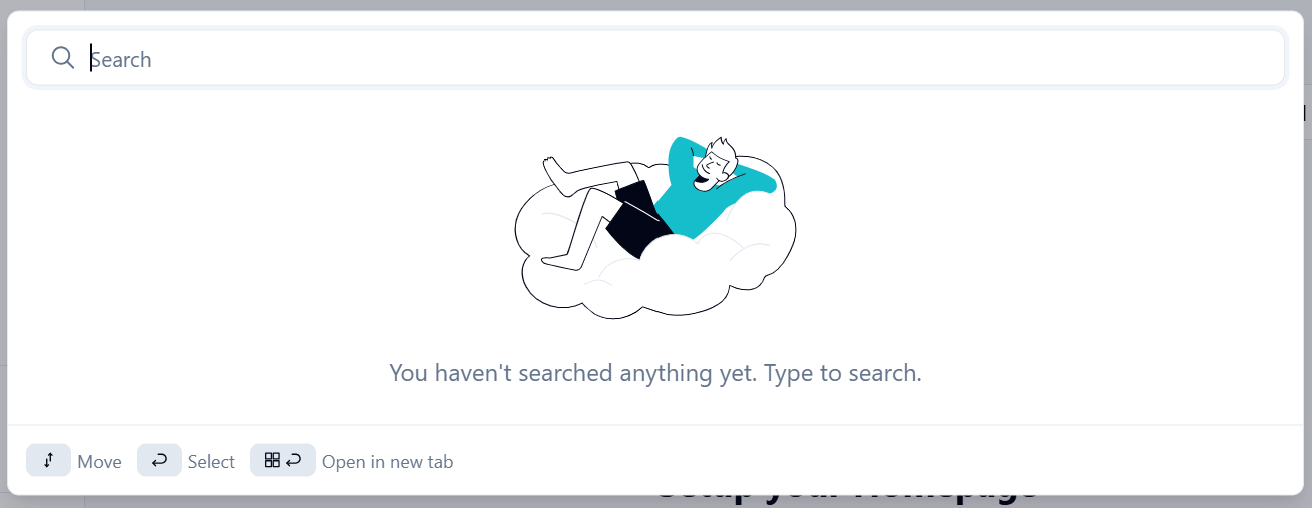
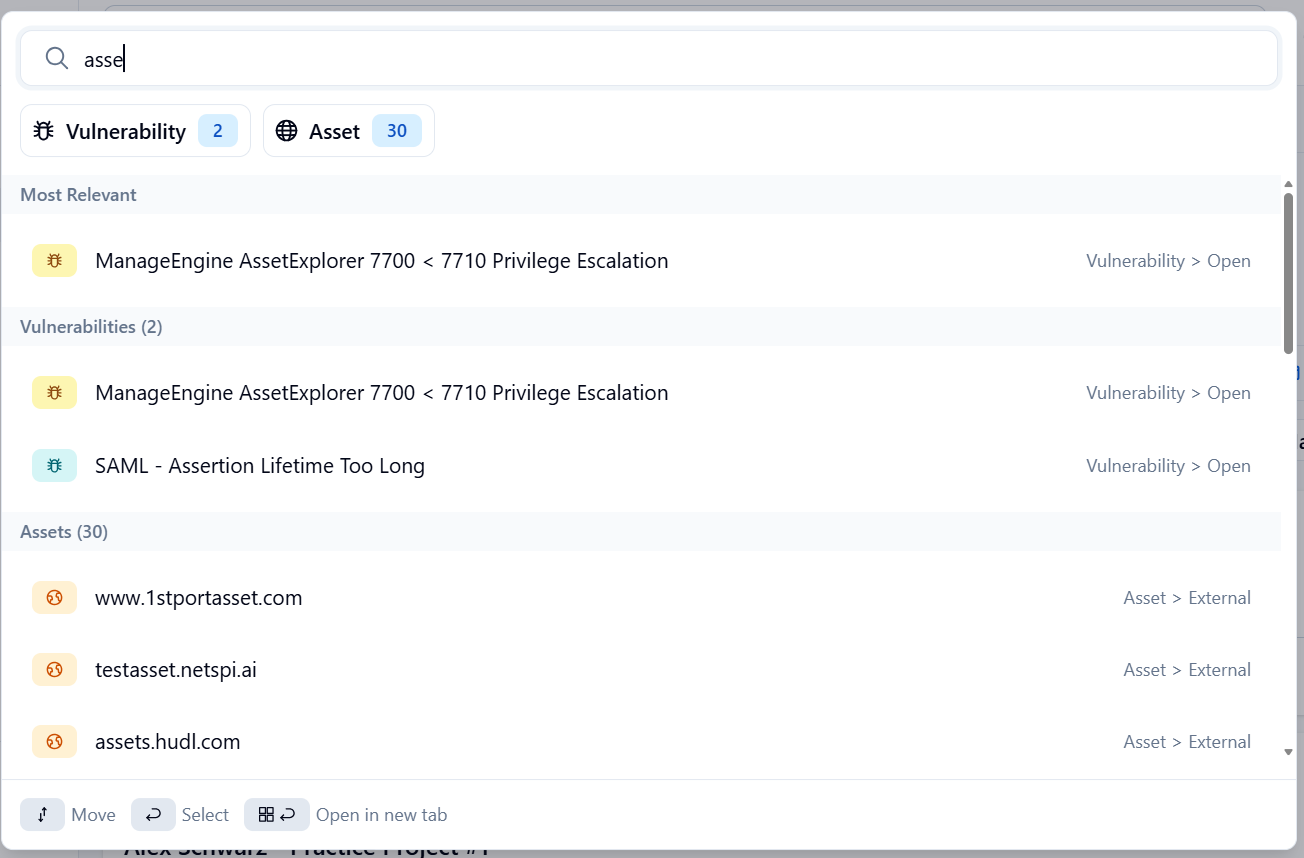
Searches actively begin once you start typing to match the characters entered and display the location/category to the right of each result returned.
Organization selector
If you have more than one organization on the NetSPI Platform (subsidiaries, etc.), you can view data for each organization by selecting it from the Tenant drop-down list.
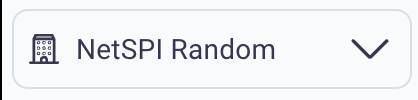
The Tenant selector also supports freeform text entry so you can search for a specific organization by typing its name in the drop-down list field.
Activity
Active Tasks: A quick view of scanners (active and inactive) and engagements. The colored status icon gives you an at-a-glance view of overall platform activity. Tasks Queue: Lists any upcoming or recently completed tasks, or tasks that were not completed due to error.
The option, from either tab, to click View Activity Dashboard takes you to the Activity Dashboard for deeper visibility.
Activity Dashboard
The Activity Dashboard is where you can review current activity on the NetSPI Platform. There is a link to view all NetSPI source IPs that will open the Allow List in a new browser tab.
Left menu
Click the toggle sidebar button to collapse or expand the left side menu.

Home
The Home Page opens to the use-case cards dashboard, surfacing your most critical, high-priority, actionable insights so you can move from visibility to action in just a couple clicks.
Engagements
The Engagements grid gives you a single, streamlined view of both ongoing and completed engagements, making it easy to monitor progress and quickly pick up where you left off.
Vulnerabilities
Expands into two sub-menus: Open Vulnerabilities and Closed Vulnerabilities.
-
Select Open Vulnerabilities to see everything that still requires action so you can prioritize, triage, and drive remediation.
-
Use Closed Vulnerabilities to review items that are resolved or no longer need attention.
Assets
This section organizes your key assets into six clear categories All Assets, IP Addresses, Domains, Applications, Identities, Certificates, and Ports so you can quickly understand where exposure may exist and where risk could be emerging across your environment.
External Threats
This section helps you monitor threats outside your system that can exploit vulnerabilities in networks, software, or operational processes to gain unauthorized access. You can use the Dark Web Monitoring and Lookalike Domain Monitoring dashboards to help keep your network safe.
Orchestration
Still being developed for the new NetSPI Platform. When moved over from the legacy experience, you will manage and monitor your integrations, scanners, and agents from a single source.
Attack Simulation
Still being developed for the new NetSPI Platform. When moved over from the legacy experience, you will be able to use your orchestrations to simulate an attack.
Settings
Your control center for managing your personal user account and for client admin users to manage platform settings for all users.
Provide Feedback
We're continuously enhancing the new experience, and your feedback directly helps shape what's next. Click Provide Feedback anytime to share what's working well and what we can improve.
Workspace area
The Workspace area is the inner section of the page where the details display for whichever functionality you've selected from the top or left menu options (i.e., Engagements, Vulnerabilities, Assets, etc.). Pages that display here often include links that open up other pages.