

Setup Homepage
When you open the new NetSPI Platform, you'll land on the Homepage. It provides the most critical,actionable information so you can complete common use cases in two clicks or less. You'll see engagement-focused cards that highlight what needs attention - for example, Upcoming Engagements displays open action items, and Engagements in Progress provides a quick summary of your active work.
But first things first, you need to setup your Homepage.
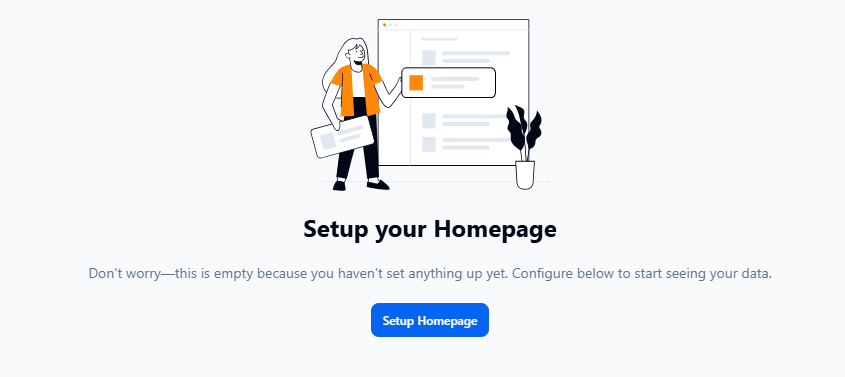
Set up your homepage
- Click the blue Setup Homepage button.
- Select the persona that closely fits your role:
- Executive - view high-level risk and performance insights to guide strategic decisions.
- Program Management - coordinate security initiatives and track progress across engagements.
- Technical Operations - investigate issues and execute technical remediation actions.
- Click Next: Domain.
- Select the domain that closely applies to you:
- Governance, Risk & Compliance - manage compliance, risk, and policy alignment across your organization.
- Security Operations - identify and remediate security weaknesses to reduce organizational risk.
- Vulnerability Management - monitor and maintain the technical health of your security environment.
- Click Next: Completion.
- Click Finish.
Your custom dashboard now displays the widgets and data you've selected. You can modify your preferences at any time.
Manage your homepage
If you want to change the layout of the page after initial configuration, click Configure to open the Home Page Configuration menu.
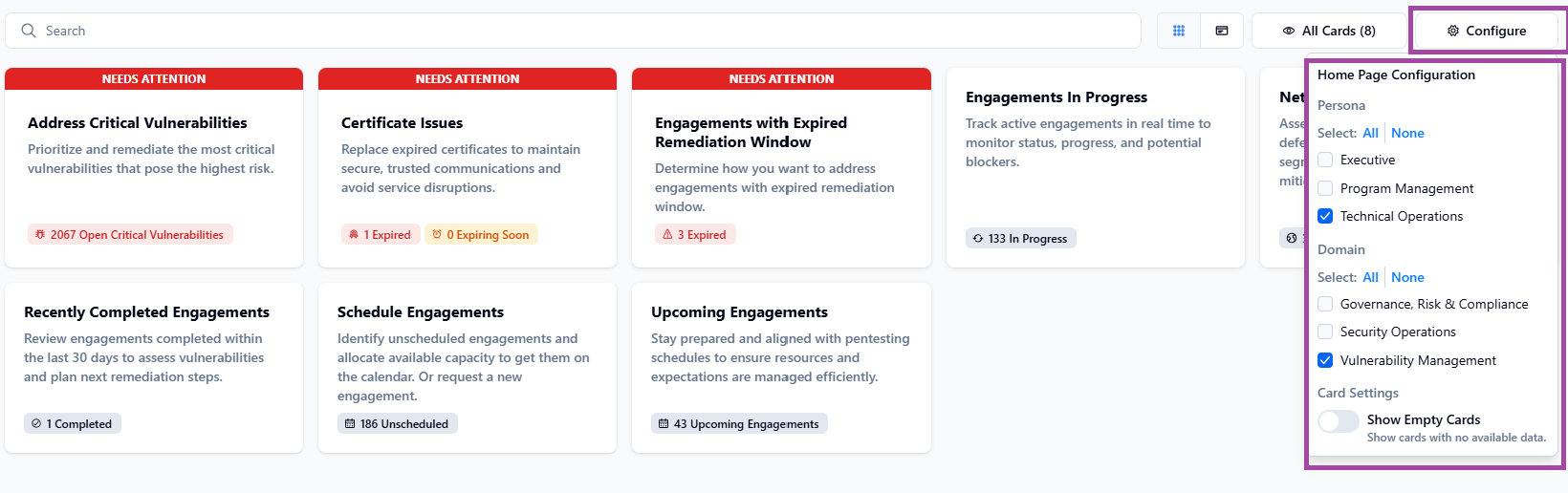
You can see the configurations currently set for the page. As you select a different Persona or Domain configuration, the page automatically updates and saves.
You can select one, two, all, or none for each Persona or Domain.
Card Settings: Move the slider for Card Settings on to show empty cards with no available data. These cards are displayed at the bottom of the Homepage in their own section, labeled Card with No Available Data.
Card Views
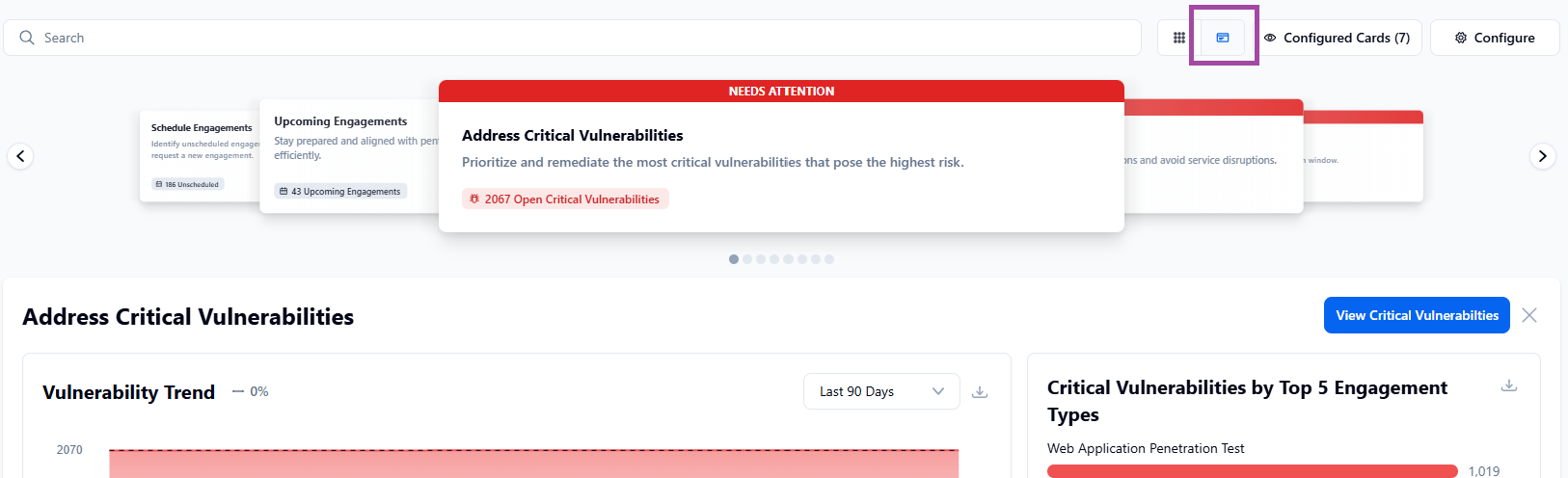
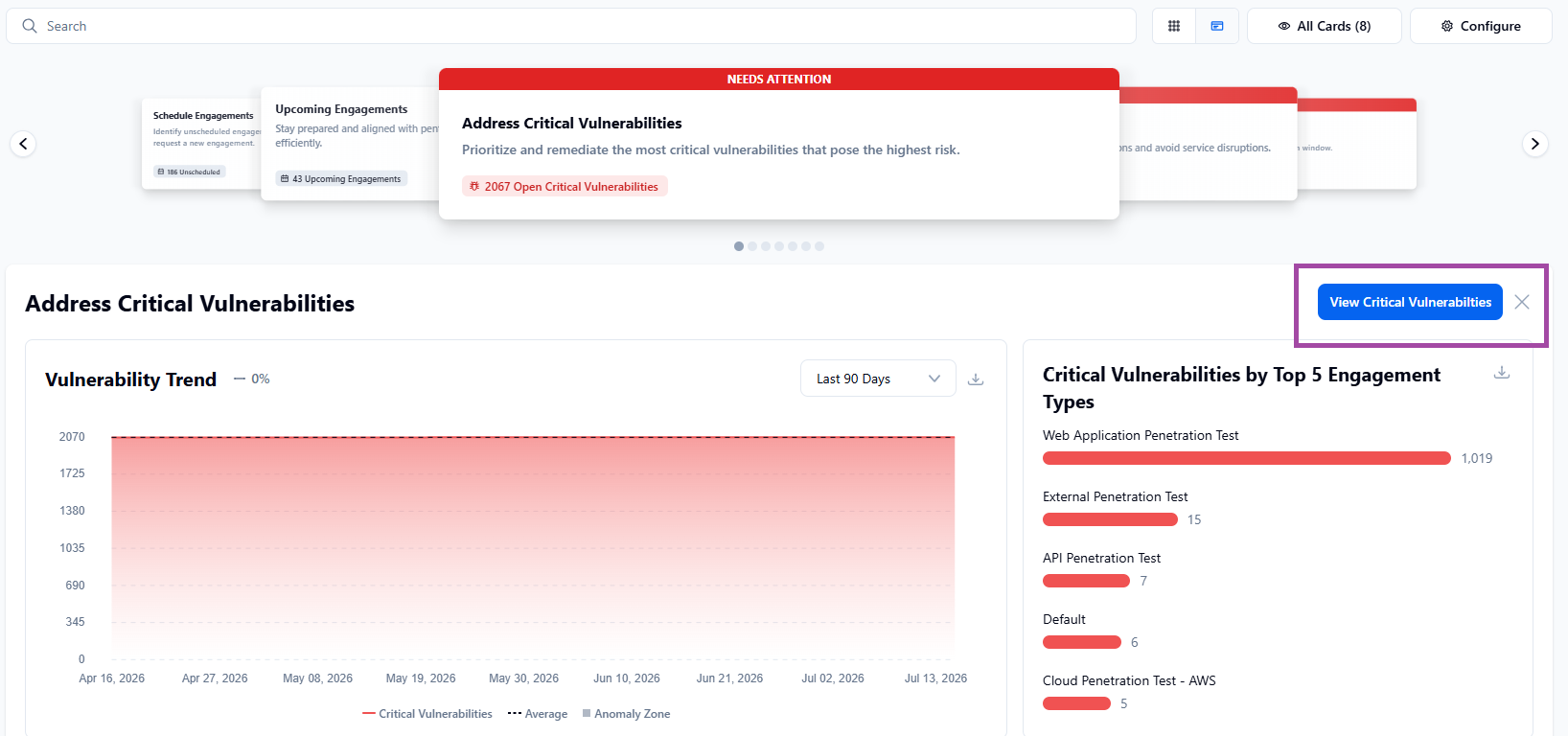
Carousel view lets you scroll through the cards based on the Persona and Domain configured, with full details displayed below the card. Click the Carousel icon on the toolbar.
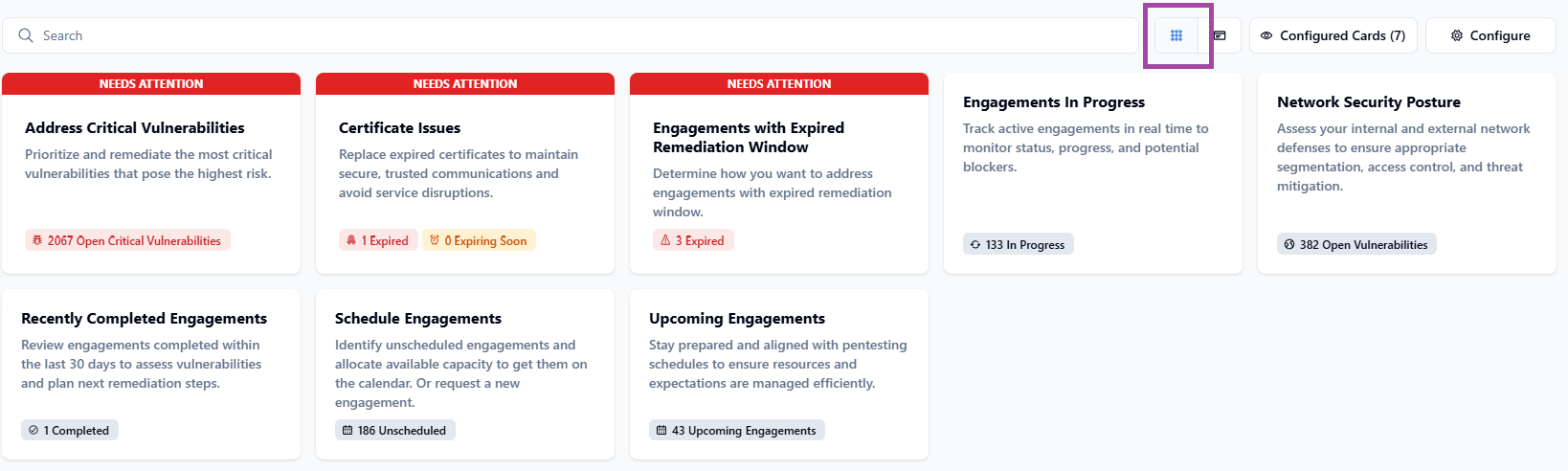
Card List view lets you view all the cards from the Persona and Domain configured. Click a card to open its details; this automatically switches to carousel view. Click the Card list icon on the toolbar.
View Dashboards
Each card view is tied to a related NetSPI Platform dashboard.
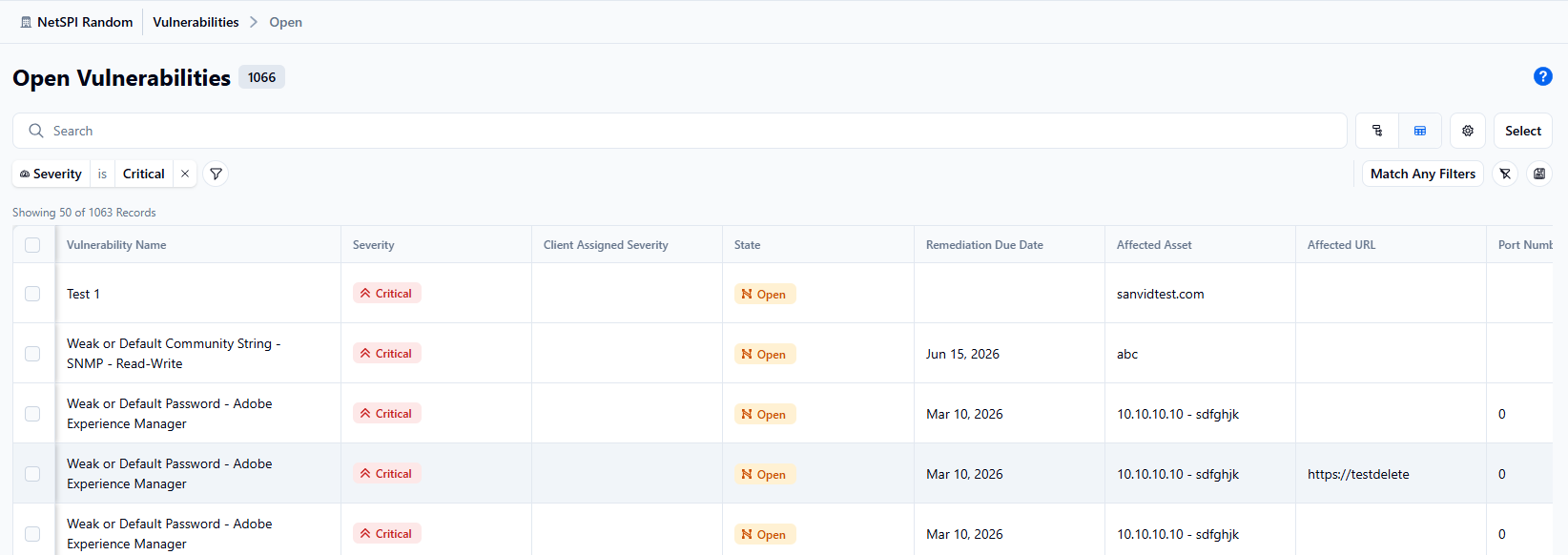
For example, clicking the Address Critical Vulnerabilities card opens the carousel view of the card with the option to click View Critical Vulnerabilities. Clicking this blue button opens the Open Vulnerabilities page.
Return Home
To return to the Card View page, click Home.