

Set up your NetSPI Platform account
You will receive an email with a link to set up your account. This email link will expire after 24 hours or after it is selected. If you need a new link, please reach out to your Client Delivery Manager (CDM) and they will send a new link.
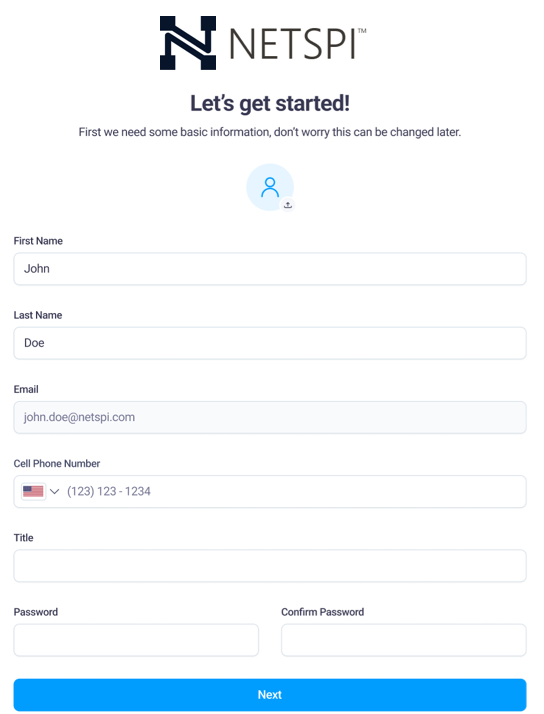
Once you have selected the link, you will be taken to the NetSPI Platform account setup form. You can upload a profile picture and fill out the text fields (all required). The cell phone field requires a country to be selected, and the password must be at least 10 characters long.
Password requirements
The following are the password requirements for all new, reset, and forgotten NetSPI Platform passwords:
- Minimum character length of 10, maximum of 64
- 1 uppercase character
- 1 lowercase character
- 1 special character
- 1 numeric digit
Multi-factor authentication (MFA)
MFA is an extra layer of security that verifies the identity of the person attempting to access an application account. Depending on the account, MFA setup will be required. If required, you will need to select an authenticator app to use for your MFA.
You can also use SMS verification as your MFA, but it is not preferred. Some options include Google Authenticator, Authy, and Microsoft Authenticator, along with many more in the app store.
Setting up MFA
-
Decide on an authenticator app for your MFA selection.
-
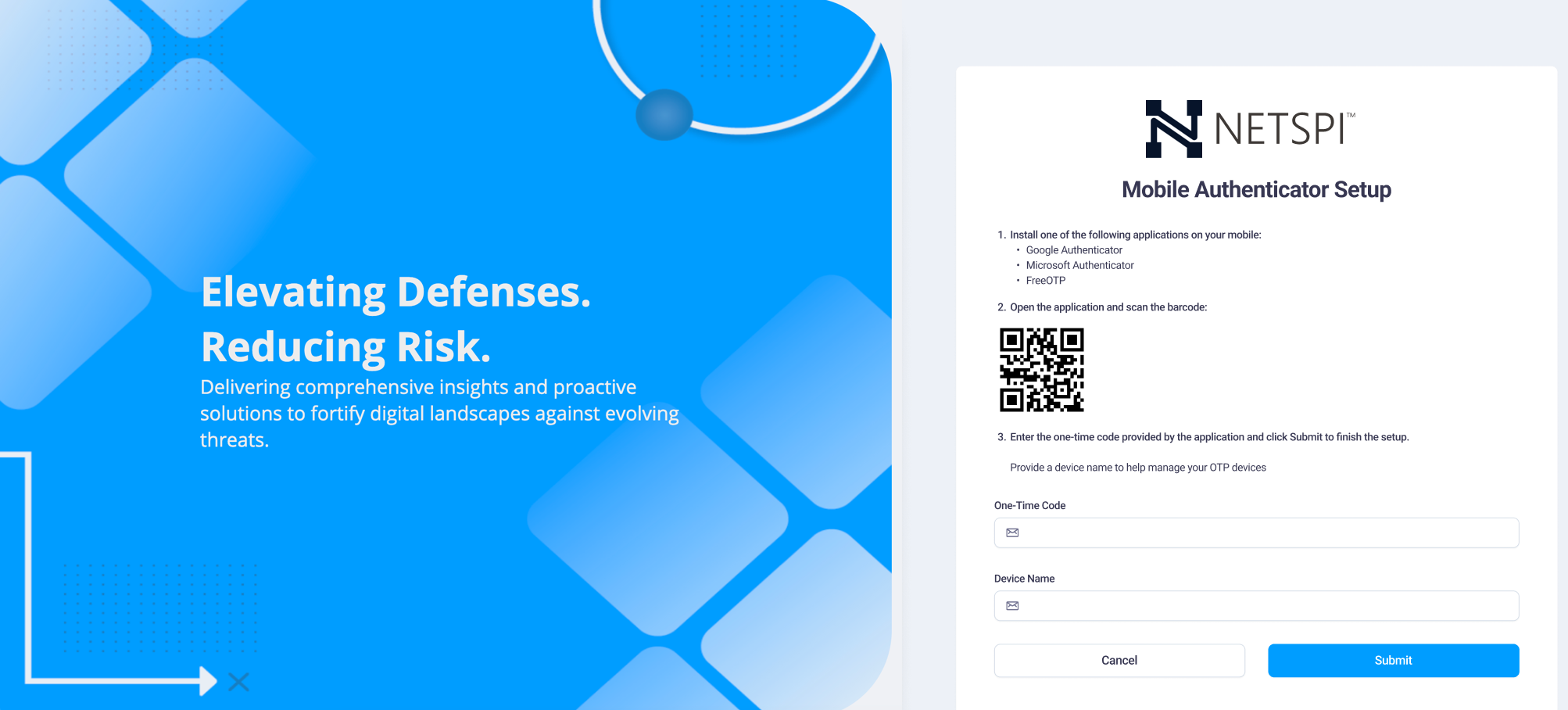
After selecting an authenticator app on your device, open it and scan the barcode displayed on the screen.
-
After scanning the code, your authenticator app will generate an MFA code. Enter it in the fields on the screen. You will then receive recovery codes for signing in if your phone is lost or unavailable. Print, copy, or download these codes for future use.
Authenticator app info
Determine which authenticator app you prefer and use the corresponding instructions below.
Google Authenticator app
- Download the Authenticator app for iOS or Android.
- Tap the plus button in the bottom right-hand corner.
- Tap Scan a QR Code.
- Enter the code shown in the Google Authenticator app into the fields in the NetSPI Platform.
- Once verified in the NetSPI Platform, make sure to print, download, or copy your recovery codes. You're all set.
Microsoft Authenticator app
-
Download the Authenticator app for iOS or Android.
-
Tap the three dots in the right-hand corner.
-
Tap Add Account.
-
Tap Work or School account.
-
Tap Scan a QR code in the pop-up.
-
Scan the QR code in the NetSPI Platform and select Done.
-
A new account called NetSPI Platform will be added to the list of your accounts. Enter the code associated with your NetSPI Platform account into the fields in the Platform.
-
Once verified in the NetSPI Platform, make sure to print, download, or copy your recovery codes. You're all set.
Twilio Authy Authenticator
- Download the Authenticator app for iOS or Android.
- Tap the plus button to add an account.
- Tap Scan QR Code.
- Scan the QR code in the NetSPI Platform.
- Enter the code shown in the Authy app into the fields in the NetSPI Platform. Once verified in the Platform, make sure to print, download, or copy your recovery codes. You're all set.