
Actions Bar
Floating Actions Bar
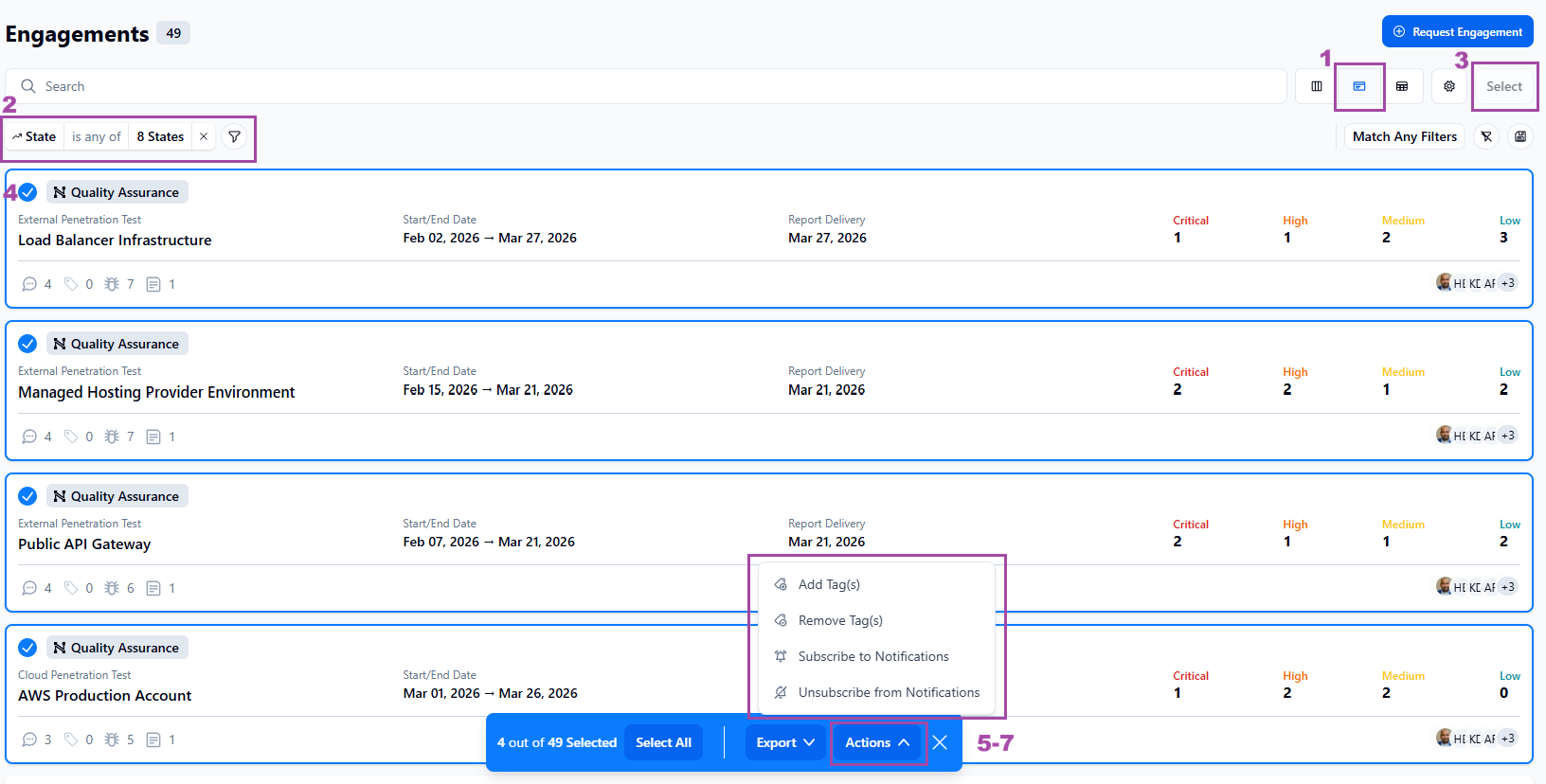
Use the Select button to activate the floating action bar to export information and perform bulk actions.

Available actions
Depending on where you open the actions bar, you can:
- Add or remove tags
- Manage notifications
- Change severity
- Update the engagement state
- Assign a remediation user
The Select button is only available from List view. However, from Table view, you can manually choose engagements by clicking an engagement row checkbox to open the bulk action menu.
Using the floating actions bar
- Switch to the List view
- Use filters to find engagements (e.g., "In Progress")
- Click Select
- Click Select All or manually select engagements from the filtered list
- Select Export or Actions:
- If Export: Choose "Export as CSV" or "Export as JSON" - A file will automatically download to your computer
- If Actions: Select the appropriate action from the available list and follow the in-dialog box prompts to complete.