

Managing Grid Views
Overview
In the NetSPI Platform, records such as assets, engagements, vulnerabilities, and users appear in grids that you can view and manage in several ways.
Display configuration
The display configuration menu lets you sort the grid results. Certain views expose extra options, such as column configurations on the engagement kanban and tree settings in the vulnerabilities tree.
Opening display configuration
- Click the Gear icon
 to the right of the search bar.
 - This opens options to configure the grid beyond the default view.
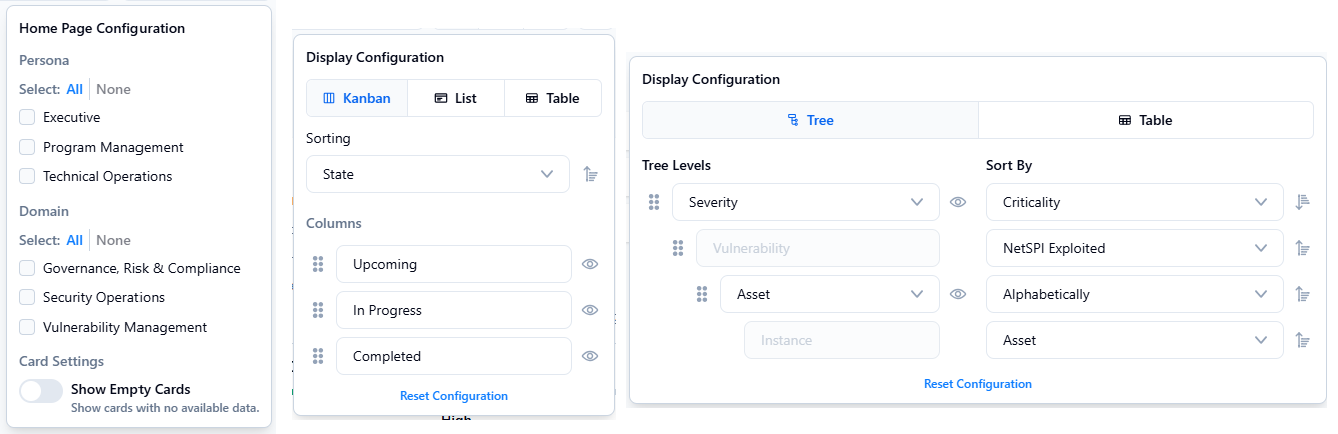
Configuration by view type
For card (home page), kanban, list, or tree views, you can configure sorting, grouping, reordering, and advanced options.
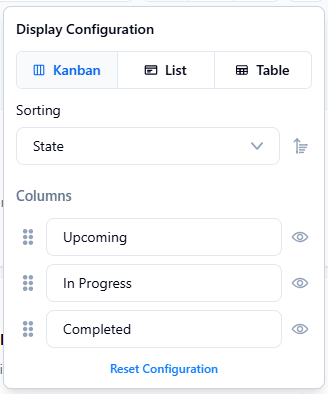
Kanban
-
The kanban view is automatically sorted by default. To change it, select the Sorting drop-down list, where the active sort is marked with a blue checkmark. Use the button on the right to switch between ascending and descending order.
-
Hover and drag a Column to change the kanban column order.
-
Click the eye icon to either display or hide the column.
List
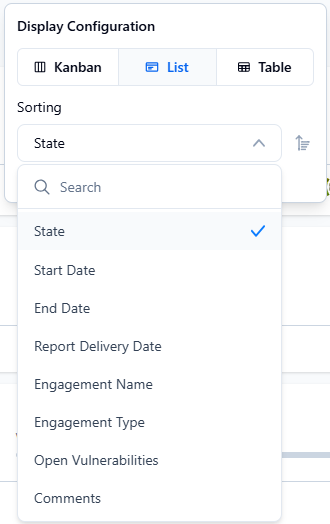
For lists, the view is automatically sorted by default. To change it, select the Sorting drop-down list, where the active sort is marked with a blue checkmark. Use the button on the right to switch between ascending and descending order.
Table
For tables, select from the list of available columns to customize your table view. Selected columns are currently displayed in your table, while unselected columns can be added at any time to show more data.
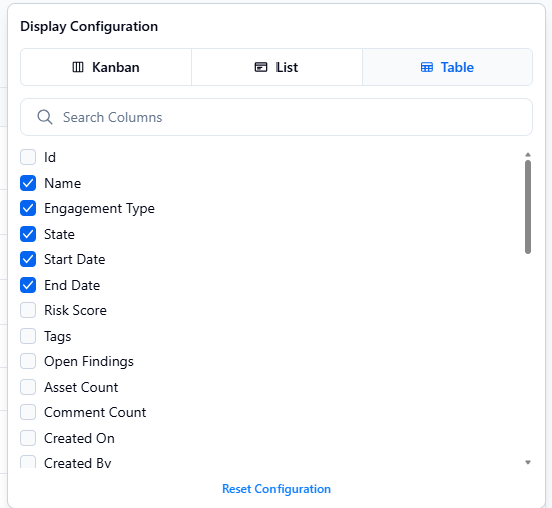
As you select different configurations, the page automatically updates and saves. Click Reset Configuration to return the page to its original default settings.
Reorder table columns
Once your table columns are selected, you can reorder them to fit your needs. Click and drag a column header to move it to the desired position.
Sort tables
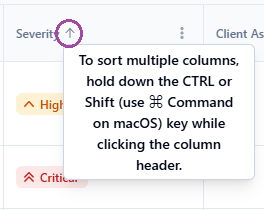
Select a table header, then use the up/down arrow toggle to sort the table by that attribute.
Pin table columns
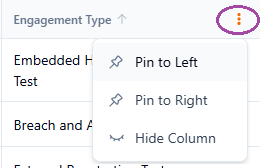
Hover over a column header to reveal a three-dot icon. Select it to open the column menu, where you can pin the column to the left or right, or hide it entirely. Hidden columns are automatically reflected in your display configuration.
Hidden columns are automatically reflected in your display configuration.