

Search, sort, and filter tables
Each grid shares the same core controls for a consistent experience, though some views offer additional tools.
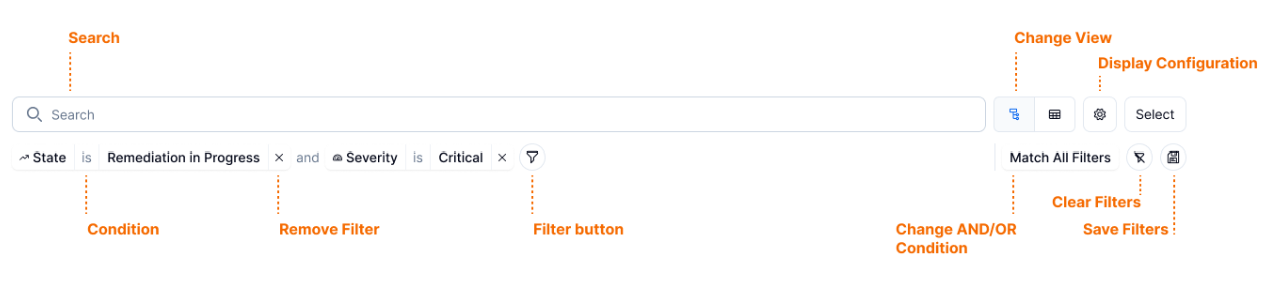
At the top of every grid you'll find:
- Search bar - Query any data shown below
- Toggle view button - Available on select grids to switch between visual layouts
- Settings button - Configure sorting and other view preferences
- Select button - Export or take bulk actions on grid items
- Filter bar - Refine the data set
Searching
Above the grid, enter your search text in the Search field. The screen below the bar updates to show the matching results.

Begin typing, the system will automatically start searching.
Filtering
You can apply filters to help you locate and view specific records.
Applying filters
- Select the Filter icon on the left to open the available filters
- From here, you can:
- Search the list
- Apply a saved filter
- Pick filters directly
Once a filter is applied:
- Select the condition portion of the filter to change how it behaves
- Select the filter value to add or remove specific items from it
Multiple filter conditions
- Multiple filters (duplicate or varied) default to an AND condition
- Select Match All Filters to switch to an OR condition instead
- Use the button on the right to clear all applied filters
- Click the X on an individual filter to remove just that one
Saving filters
You can save your current filter set for future use:
- Select the Save icon on the far right
- Enter a name in the Save Filters dialog box
- Select Save Filters
Your saved filter will appear in the saved filters section the next time you open the Filter menu.
NetSPI has provided at least one saved filter for each grid based on common use cases. Only filters that you have saved can be edited or deleted. Only the filter name can be edited, not the building blocks of the filter.