

Add Credentials
Adding a credential stores the login details your tenant needs so that engagements, scanners, integrations, and agents can authenticate to a target system. Start by choosing a credential type, and the form will show only the fields that type requires. You can also turn on Automatic Credential Verification, which lets NetSPI’s AI testers confirm the credential works before testing begins, so no engagement time is lost to bad logins or blocked access.
Add a new credential
-
Select a Credential Type from the dropdown list. The Basic Information section will then display the fields that apply to that type.
-
Select a Permission, then turn on the toggle to enable it.
-
Enable Automatic Credential Verification to confirm that your credentials are correct before the engagement begins, so no engagement time is lost to bad logins or blocked access.
-
The Basic Information section updates to show only the fields that apply to the credential type you choose. Complete all required fields before continuing.
-
Select an MFA Method from the dropdown list. The method you select determines what additional information you'll need to provide.
-
Click Add.
View, Edit, and Delete Credentials
After a credential is added, you can review its details, update its settings, or remove it when it’s no longer needed. Open a credential to view its configuration and activity history, edit any field without changing the credential type, such as the username, password, or MFA method, or delete one or several credentials at once. Your user profile group assignment determines whether you can delete credentials.
View
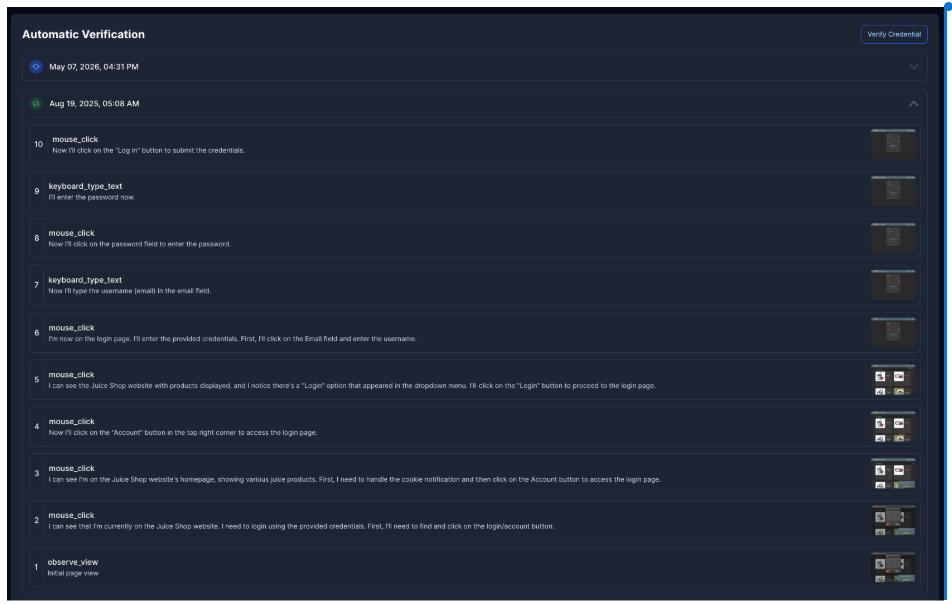
Below is an example of the Automatic Verification tab showing the process used to verify a credential by manually going through the provided destination and attempting to log in with the information given.
Edit
After a credential is added, you can edit any of the fields without changing the credential type. For example, you can update the username, password, or modify the MFA method.
Delete
Your user profile group assignment determines whether you can delete credentials.
To delete a single credential, select the credential and click the Delete icon in the top-right.
To delete multiple credentials, use the Select function:
- On the Credential Management page, click Select.
- Choose the credentials that you want to delete.
- On the Actions Bar, click Actions > Delete Credentials.
- Confirm the deletions, click Delete.