
Vulnerabilities Details
Clicking into a vulnerability instance opens the Vulnerability Details side panel.
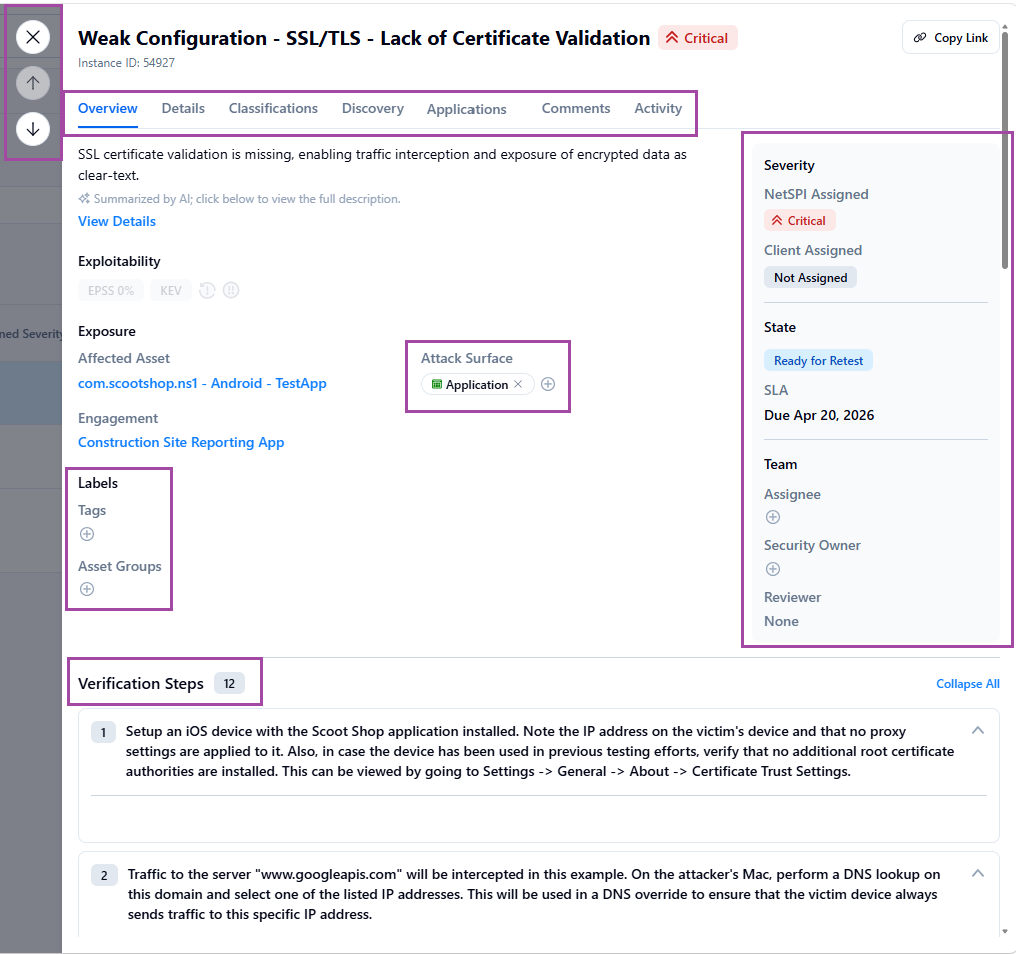
Use the arrows on the left side of the panel to move through instances within the current grouping without closing the panel and resize the panel by dragging the left edge as needed.
On the right, you can confirm the current severity, apply a client-assigned severity to reflect business context and personal prioritization, and update the state as remediation progresses. This helps keep NetSPI aligned on what to prioritize during remediation testing and validation.
Supporting tabs
You can dig into supporting tabs for deeper context, such as Overview, Details, Classifications, Discovery, Affected Apps, Comments, and Activity.
Overview
The Overview tab summarizes impact and exposure, such as the affected asset, URL, port, and parameter, so your team can quickly understand where the issue is and why it matters.
Within the Overview section are additional areas to add more detail to the vulnerability: Attack Surfaces and Labels.
Attack Surface
While an attack surface is automatically assigned, you can add additional applicable surfaces to the vulnerability.
To do so:
- Next to the existing Attack Surface listing, click the Add icon.
- Select another applicable surface from the list.
- It is automatically added.
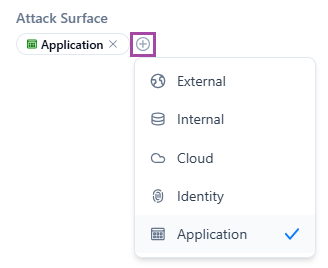
To remove a surface, click the X icon.
Add Labels
Within the body of the overview, you will see an option to add Labels for Tags and Asset Groups.
To add either:
- Click the Add icon.
- Select the Tags or Asset Groups from the list.
- Click Add Tags or Add Asset Groups.
- To remove a label or tag, click the X icon.
Details
The Details tab provides more context around your vulnerability, such as the description, business impact, and remediation instructions. If there is no available data for a specific field, it will be hidden from the view.
Classifications
The Classifications tab provides additional context about the vulnerability that wasn't covered in the Overview, such as MITRE ATT&CK information, OWASP information, and risk ratings. If there is no available data for a specific field, it will be hidden from the view.
Discovery
The Discovery tab shows important information about the timeline and discovery of the vulnerability.
It also shows the collection information, or in other words, what was used to discover the vulnerability. This is organized into four levels, from broadest to most specific:
-
Module: The highest-level context, indicating which capability found the vulnerability (for example, Continuous Capability or PTaaS).
-
Source Type: The category of the source, such as Scanner, Integration, or Manual.
-
Source: The specific tool or method within that source type, such as Dark Web Monitoring or External Asset Discovery.
-
Source Instance: The specific named instance of that source.
Applications
The Applications tab lists all of the applications in a table view that are affected by this vulnerability.
Comments
The Comments tab is for communicating with your team or the NetSPI team. Vulnerability Notes are for adding any additional information about the vulnerability throughout the engagement.
Choose the Comments or Vulnerabilities Notes tab. The same editor is used for either option to enter your comment or note.
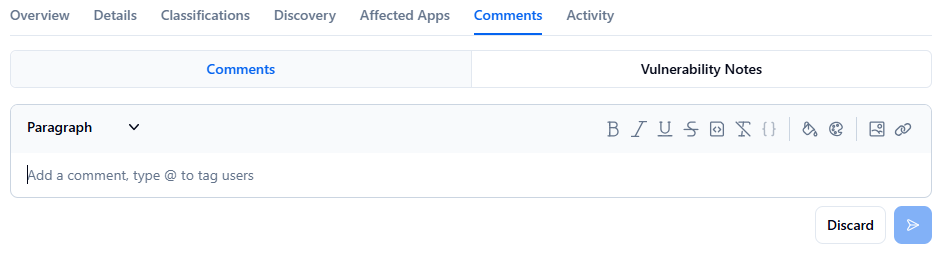
Click the Send icon to save or send the comment.
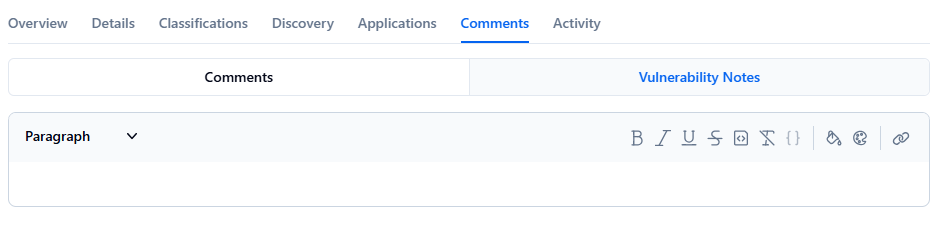
You can move away from Comments tab, a vulnerability note automatically saves.
Activity
The Activity tab lists a historical log of actions that have taken place on this vulnerability since its creation.
Verification Steps
You'll find clear verification steps and evidence to help your team reproduce, remediate, and confirm fixes.